
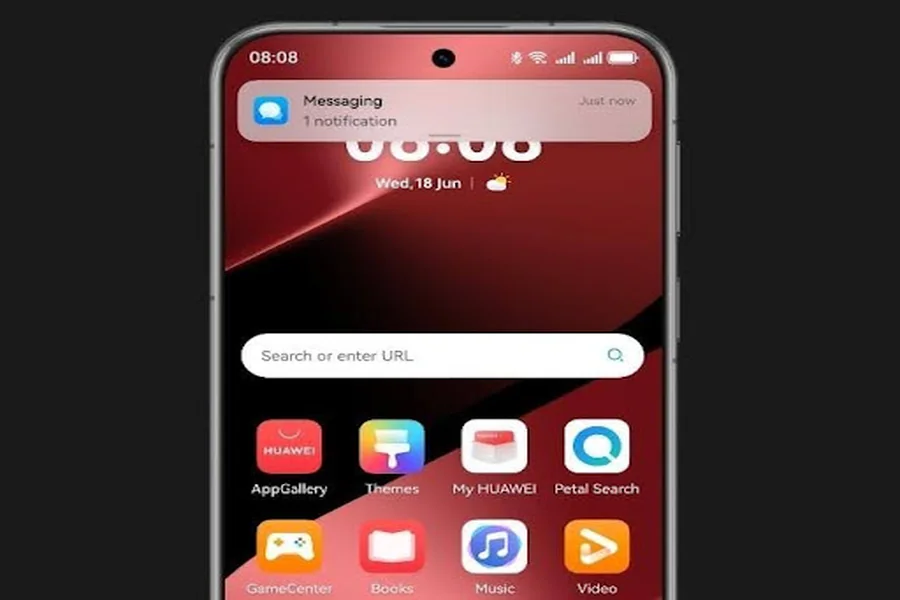
App clutter kills productivity and makes everyday tasks frustrating. Whether it’s finding your banking app in a sea of icons or forgetting where your health tracker went, poor organization wastes time. A smart folder and widget strategy solves that. With more apps flooding our screens every year, users need actionable ways to simplify their mobile experience. This post explores efficient folder naming, ideal layout practices, and strategic widget usage. We break down the most effective methods used by top users and tech experts alike. From layout logic to widget placement, learn how to make your device work better for you.
Why Is App Organization Important in 2025?
With mobile screen time reaching record highs in 2025, efficient app organization isn’t just a productivity hack—it’s a digital wellness necessity. Users now juggle dozens of apps for work, health, communication, and entertainment. A cluttered home screen increases cognitive load and slows access to frequently used tools. Worse, it causes distractions and disrupts workflows. Modern smartphones offer greater customization than ever before, making it easier to tailor layouts to daily routines. Whether you’re using EMUI or HarmonyOS, a well-organized home screen can improve focus, reduce stress, and help you get more done. Small tweaks to layout and folder design have a big payoff.
What’s the Best Folder Strategy for Home Screen Setup?
Most Popular Folder Naming Conventions
People name folders in three dominant ways: by function, by frequency, and by context. Function-based folders include names like “Work,” “Finance,” or “Health.” Frequency-based setups use titles like “Daily” or “Rarely Used.” Context-based options reflect usage patterns such as “On the Go” or “At Home.” Function-based naming remains the most common due to its simplicity and clarity. However, a hybrid approach often works best—combining clear categories with practical labels. For example, you could have “Work (Daily)” or “Fitness (AM).” Naming should be intuitive to you and reflect how you think, helping to minimize the time spent searching for apps.
Ideal Number of Folders per Screen
Too many folders clutter the screen and reduce usability. Experts recommend no more than 4 to 6 folders per home screen to balance access and visual clarity. Each folder should hold no more than 9–12 apps to avoid deep scrolling. The goal is quick access with minimal swiping or tapping. Keep the most-used folders on the main screen, then arrange secondary folders on the next. This structured layering lets your home screen act like a dashboard. Also, placing folders in thumb-friendly zones improves one-handed use. Clean layouts encourage consistent usage and reduce decision fatigue over time.
Color Coding vs. Category Sorting: Which Is Better?
Color coding looks appealing, but category sorting wins on function. Grouping by category, like “Social,” “Productivity,” or “Media,” makes it easier to locate apps based on intent. Color coding works best when paired with category names—for example, using blue for work tools and red for entertainment. However, users often struggle to remember color associations. On the other hand, categories align with mental models, making them more intuitive. For the best of both worlds, use color accents or widgets to visually separate folders while keeping category labels. Prioritize clarity over aesthetics unless your memory leans heavily on visual cues.

How to Use Widgets Smartly Without Overcrowding?
Widgets That Add Value: Must-Haves for 2025
Top widget picks in 2025 offer both glanceable info and interactive shortcuts. Essentials include calendar, weather, battery status, and screen time overview. Productivity users benefit from task managers like Todoist or Notion, while health-conscious users prefer widgets from fitness trackers or hydration reminders. Finance apps like Wallet offer balance views or spend tracking at a glance. Prioritize widgets that offer information you check daily without opening the app. Avoid duplicating functionality—each widget should serve a unique purpose. Choose widgets that update in real-time and provide actionable value rather than just passive visuals.
Placement Rules: Where Should Widgets Go?
Place widgets in high-traffic screen zones like the top or center of the first home screen. This ensures instant visibility for time-sensitive info like meetings or weather. Keep interactive widgets near the bottom for easy tapping. Group similar widgets together—productivity with productivity, health with health. Avoid placing widgets on screens rarely visited, as it defeats their real-time purpose. Leave space between widgets and folders to reduce visual clutter. Too many widgets close together make tapping harder and the interface messy. Consider using a full screen for widgets if your device supports Smart Stacks or widget-only pages for better structure.
Avoid These Common Widget Mistakes
One of the biggest mistakes is overcrowding your home screen with too many widgets, reducing clarity, and overwhelming the eye. Another is using static widgets that rarely update or serve redundant functions. People often stack multiple productivity widgets but ignore system efficiency—this can slow your device and drain battery. Placing widgets across several screens makes them easy to forget. Also, avoid placing widgets directly above app icons you use often; this causes accidental taps and slows navigation. Lastly, don’t neglect customization. Resize and adjust your widgets to fit your screen ergonomics and app layout style.
Conclusion
Organizing your apps using a clear folder strategy and smart widget placement pays off in faster navigation, better focus, and less screen stress. Stick to intuitive folder names, limit screen clutter, and choose sorting methods that match your thinking style. Use no more than a handful of widgets, and make sure they genuinely serve your daily needs. Visual appeal matters, but function comes first. Whether you’re setting up quick access to daily tools or searching for tips like how to install whatsapp on huawei, your phone should work for you, not against you. A few hours spent setting up a thoughtful layout will save hundreds of taps and swipes later. Take control of your digital space and make it truly efficient.