

In the world of virtualization, VMDK (Virtual Machine Disk) files play a crucial role. These files, created by VMware, contain the entire contents and structure of a virtual machine’s hard drive. They are essential for running and managing virtual machines, making them a critical asset for many businesses and IT professionals.
VMDK files can be lost or corrupted due to various reasons, such as hardware failures, software glitches, or human error. When this happens, it can lead to significant data loss and disrupt operations. Therefore, understanding how to recover VMDK files is vital for anyone working with virtual environments.
This article will guide you through the process of VMDK file recovery, exploring various methods and tools available, and providing best practices to prevent future data loss.
VMDK Files: Basic Moments
VMDK (Virtual Machine Disk) files are virtual hard disk files used primarily by VMware virtual machines. They contain the entire contents of a virtual machine’s hard drive, including the operating system, applications, and data. VMDK files allow for the encapsulation of an entire virtual machine’s storage, making it portable and manageable.
Types of VMDK Files
- Monolithic Flat: A single file containing all data.
- Split: Multiple 2GB files for better portability.
- Monolithic Sparse: A single file that grows as data is added.
- Two-GByte Sparse: Multiple 2GB sparse files.
- Streaming Optimized: Optimized for streaming over networks.
Common Scenarios Leading to VMDK File Loss or Corruption
- Hardware failures (e.g., hard drive crash).
- Software issues (e.g., VMware errors, OS crashes).
- Human error (accidental deletion or modification).
- Power outages or improper shutdowns.
- Malware or virus attacks.
- File system corruption.
Preparation for VMDK Recovery
First, assess the extent of the damage. Determine whether the VMDK file is completely lost or just corrupted. This distinction is important as it will guide your recovery approach. A corrupted file might be repairable, while a completely lost file may require more extensive recovery methods.
Next, check if you have any recent backups or snapshots of the VMDK file. These can be invaluable in recovering your data quickly and with minimal loss. If you have a recent backup, it might be the fastest and most reliable way to recover your data.
It’s also important to verify if the host system is stable and functioning correctly. A malfunctioning host system could complicate the recovery process or even lead to further data loss. Ensure that the system you’re working on is reliable and free from any issues that could interfere with the recovery process.
By thoroughly assessing the situation and gathering the necessary tools beforehand, you’ll be well-prepared to tackle the VMDK recovery process. This preparation can save you time, reduce stress, and increase your chances of a successful recovery.
Method 1: Using VMware’s Built-in Tools

VMware offers a built-in command-line utility called vmware-vdiskmanager that can help repair certain VMDK issues. This tool is particularly useful for minor corruption problems and is free to use, being an official VMware tool.
To use vmware-vdiskmanager, follow these steps:
- Open a command prompt with administrator privileges.
- Navigate to the VMware installation directory.
- Run the command: vmware-vdiskmanager -R /path/to/your/corrupted.vmdk
- Wait for the process to complete.
While this method has the advantage of being a free and official tool that can fix minor corruption issues, it does have limitations. The utility is not capable of addressing severe corruption problems, and it requires some command-line knowledge to use effectively. Despite these drawbacks, it’s often worth trying this method first due to its simplicity and the fact that it’s directly supported by VMware.
Method 2: Third-Party VMDK Recovery Software
When VMware’s built-in tools fall short, third-party VMDK recovery software can offer more advanced solutions. Popular tools in this category include Disk Drill, R-Studio, and DiskInternals VMFS Recovery. These applications are designed specifically for recovering lost or vmdk corrupted files.
Third-party software offers several advantages. They generally provide user-friendly interfaces, can often recover severely corrupted files, and usually support multiple file types beyond just VMDK files. This versatility can be particularly useful if you need to recover other types of data as well.
However, these tools also have limitations. They can be costly, especially for one-time use. The effectiveness of recovery can vary between different software tools, and some may not support all VMDK file types. It’s important to research and choose a tool that best fits your specific needs and the type of VMDK file you’re trying to recover.
Method 3: Manual Recovery Using Data Recovery Software
Manual recovery using data recovery software is a more advanced approach that involves raw data recovery techniques. This method scans the storage device at a low level to find and reconstruct lost or corrupted files, including VMDK files.
Popular tools for manual VMDK recovery include DiskInternals, TestDisk, and Recuva. These tools are designed to perform deep scans of storage devices and can often recover data even when the file system is damaged or the files are severely corrupted.
The process of extracting data from a VMDK file using these tools typically involves the following steps:
- Run the data recovery software of your choice.
- Select the drive containing the VMDK file.
- Choose the “Deep Scan” or equivalent option to perform a thorough search.
- Wait for the scan to complete, which can take several hours depending on the drive size.
- Search through the results for VMDK file fragments.
- Attempt to reconstruct the VMDK file from the recovered fragments.
This method can be particularly effective when other recovery methods have failed, as it bypasses the file system and looks directly at the raw data on the drive. However, it requires more technical knowledge and can be time-consuming. The success rate depends on the extent of the damage and how much the data has been overwritten since the loss occurred. While this method can be powerful, it should be approached with caution and ideally performed by those with experience in data recovery techniques.
Method 4: Recovering from Snapshots
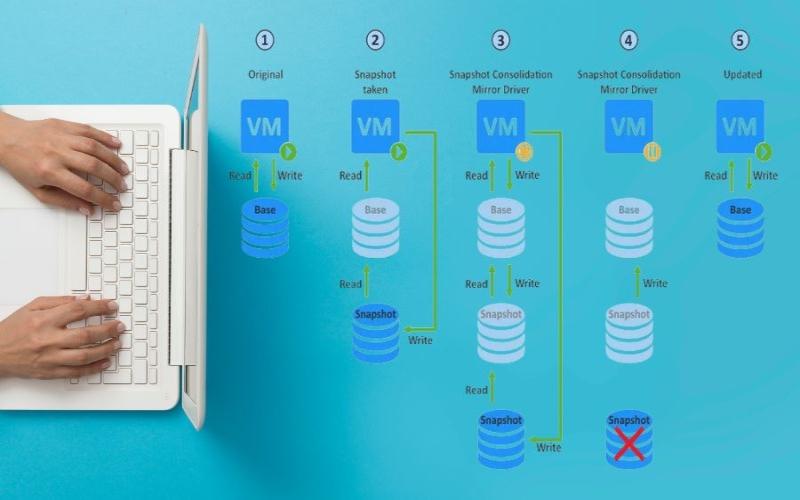
VMware snapshots are a powerful feature that can be invaluable in VMDK recovery scenarios. Snapshots are point-in-time copies of a virtual machine’s state, including its VMDK files, which can be used to revert a VM to a previous state. This method can be particularly useful if the VMDK file became corrupted or lost after a recent snapshot was taken.
To recover using snapshots:
- First, locate the snapshot files. These are typically stored in the same folder as the VMDK file.
- In VMware, navigate to VM settings and open the Snapshot Manager.
- Select the desired snapshot that predates the VMDK issue.
- Click “Go To” to revert the VM to that snapshot’s state.
If multiple snapshots exist, you may need to merge them to recover your data:
- Open the Snapshot Manager.
- Right-click on the desired snapshot.
- Select “Delete All Snapshots” to merge changes.
This process consolidates all changes made since the snapshot was taken into the base VMDK file. It’s important to note that reverting to a snapshot will undo all changes made since that snapshot was taken, so ensure you’re reverting to the appropriate point in time.
Method 5: Using File History or Backup
Regular backups are crucial for quick and reliable recovery of VMDK files. This method leverages built-in backup features in Windows and macOS to restore lost or corrupted VMDK files.
For Windows users, File History can be used:
- Open Control Panel and navigate to File History.
- Click “Restore personal files”.
- Navigate to the VMDK file location.
- Select the file and click the Restore button.
Mac users can utilize Time Machine:
- Connect your Time Machine backup drive.
- Open Finder and navigate to the VMDK file location.
- Click the Time Machine icon in the menu bar.
- Use the timeline to find the version you want to restore.
- Select the file and click “Restore”.
This method is often the quickest and most reliable way to recover VMDK files, provided you have recent backups. It bypasses the need for complex recovery tools or processes. However, its effectiveness depends entirely on the recency and consistency of your backups.
To make the most of this method, it’s crucial to implement a regular backup strategy for your VMDK files. This could involve scheduled backups to local drives, network-attached storage, or cloud storage solutions. By maintaining current backups, you can significantly reduce downtime and data loss in the event of VMDK file corruption or loss.
Preventing Future VMDK File Loss
Preventing VMDK file loss is crucial for maintaining the integrity and availability of your virtual machines. By implementing best practices, regular backup strategies, and proper shutdown procedures, you can significantly reduce the risk of data loss and streamline recovery processes if issues do occur.
Best practices for VMDK file management include:
- Organizing VMDK files in dedicated folders for easy access and management.
- Using descriptive naming conventions to quickly identify VMs and their purposes.
- Regularly checking for disk errors and fragmentation to maintain optimal performance.
Implementing a robust backup strategy is essential:
- Set up automated backup solutions to ensure consistent, up-to-date backups.
- Utilize both local and cloud-based backups for redundancy.
- Regularly test your backups to ensure they can be restored successfully when needed.
Proper shutdown procedures for virtual machines are also critical:
- Always use the correct shutdown option within the guest operating system.
- Avoid force-stopping VMs unless absolutely necessary, as this can lead to data corruption.
Troubleshooting Common Issues
For partially corrupted VMDK files:
First, try using VMware’s built-in repair tools. If these prove unsuccessful, consider using third-party recovery software, which may be more effective in handling complex corruption issues. In some cases, even if full recovery isn’t possible, you may be able to recover partial data, which could be valuable depending on your needs.
When handling encrypted VMDK files:
Ensure you have the correct encryption key or password before attempting recovery. Some specialized recovery tools support encrypted VMDK files, but for complex encryption scenarios, you may need to engage professional data recovery services.
If all recovery methods fail:
Stop making any changes to the VMDK file to prevent further data loss. Consider reaching out to VMware support for additional guidance, as they may have specific insights for your situation. If the data is critical, it may be worth evaluating professional data recovery services. These specialists have advanced tools and expertise that could potentially recover data in cases where standard methods have failed.
Conclusion
Recovering VMDK files can be a complex process, but with the right approach and tools, it’s often possible to retrieve lost or corrupted data. We’ve explored various methods, from using VMware’s built-in tools to employing specialized third-party software and professional services.
Remember that prevention is always better than cure. Implementing regular backups, proper VM management practices, and careful handling of VMDK files can significantly reduce the risk of data loss.
In the event of VMDK file loss or corruption, stay calm and methodical. Assess the situation, choose the most appropriate recovery method, and don’t hesitate to seek professional help if needed. With patience and the right approach, you can often recover your valuable VMDK files and get your virtual machines backup and running.