
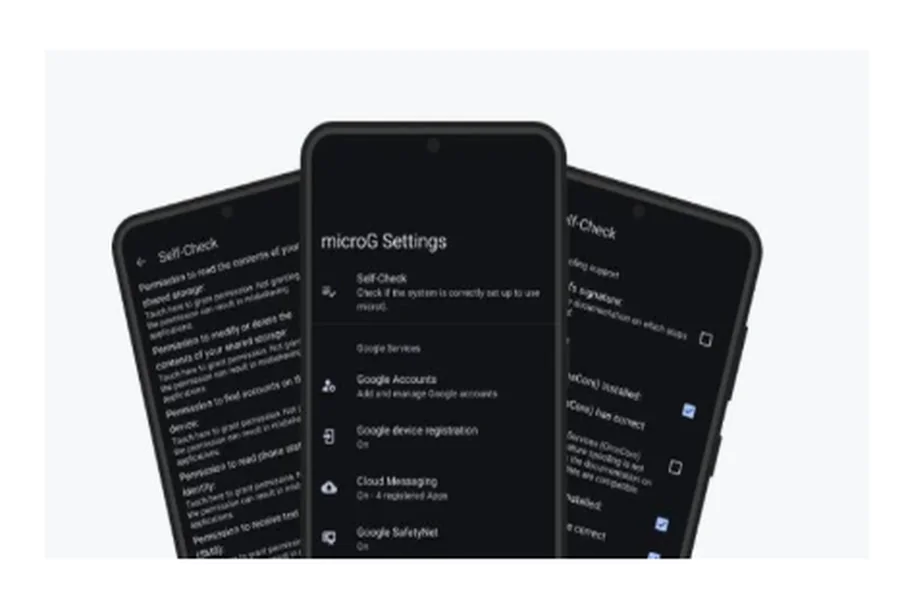
Preparing to move away from Google Services can feel like learning a new routine, but it becomes far easier when the process is broken into clear, manageable stages. No matter your motivation, approaching the switch step by step helps ensure that nothing critical is lost and that your daily habits remain uninterrupted. To help you transition confidently and comfortably, we will walk through the entire migration path in this article, showing you how each step contributes to a smooth and reliable setup.
Stage 1: Pre-Migration Audit and Preparation
Auditing Your Current Google Service Dependencies
Understanding how much you depend on Google Services is the foundation of a safe and successful migration. Many apps on your phone may quietly rely on location APIs, push messaging, login authentication, or background syncing through Google Play Services. By checking which apps use these functions, you can anticipate where adjustments will be needed during the transition. This step also helps you decide which apps are truly essential and which ones can be replaced with lighter or more privacy-friendly alternatives. Once you have a clear overview of your digital habits, the migration becomes less about guessing and more about making informed, confident decisions.
Backing Up Essential Data and Creating a Rollback Plan
Creating a full backup is one of the most important safety steps before switching from Google Services to MicroG. Whether you store photos, contacts, notes, or downloaded files, knowing that everything is safely preserved removes much of the stress people feel when making big system changes. Having a rollback plan also provides peace of mind, as it lets you revert to your previous setup instantly if something does not work as expected. This simple preparation step transforms the migration from a risky experiment into a controlled, reversible process. With your data secured and a fallback option in place, you can proceed to the next stage with confidence.
Stage 2: The Gradual, App-by-App Replacement Strategy
Identifying and Testing Privacy-Focused App Alternatives
Replacing apps one by one is often the most comfortable and least disruptive way to migrate away from Google-dependent services. Many people prefer testing alternatives while still having their original apps available, which allows them to understand differences in features, notifications, or syncing behavior. Trying multiple options helps you discover which apps feel natural in daily use and which ones fit your existing habits more comfortably. This process also allows you to adjust your expectations and find solutions that match your real needs rather than relying on default choices.
Switching Off Google Services One Function at a Time
Turning off Google functions gradually allows your device to adapt without overwhelming you with sudden changes. Some users start by disabling location history, others by turning off backup syncing, and others by limiting background access. This slow and intentional adjustment helps you understand which features you truly rely on and which ones were simply running in the background without offering real value. It also ensures that any issues appear one at a time, making them easier to troubleshoot and resolve. When done patiently, this step builds momentum toward full migration while maintaining your daily usability.
Stage 3: Installing and Configuring MicroG
Step-by-Step Installation Without Factory Reset
Installing MicroG without performing a factory reset is possible for many devices, which makes the transition far less intimidating for everyday users. The key is following a structured installation path that includes enabling signature spoofing, installing the MicroG core components, and granting necessary permissions. A particularly useful example comes from people exploring microg for huawei, which provides a clear, device-specific guide for this entire process. By following these tailored steps, users can restore access to popular apps while maintaining greater control over their privacy—all without the drastic step of wiping their device.
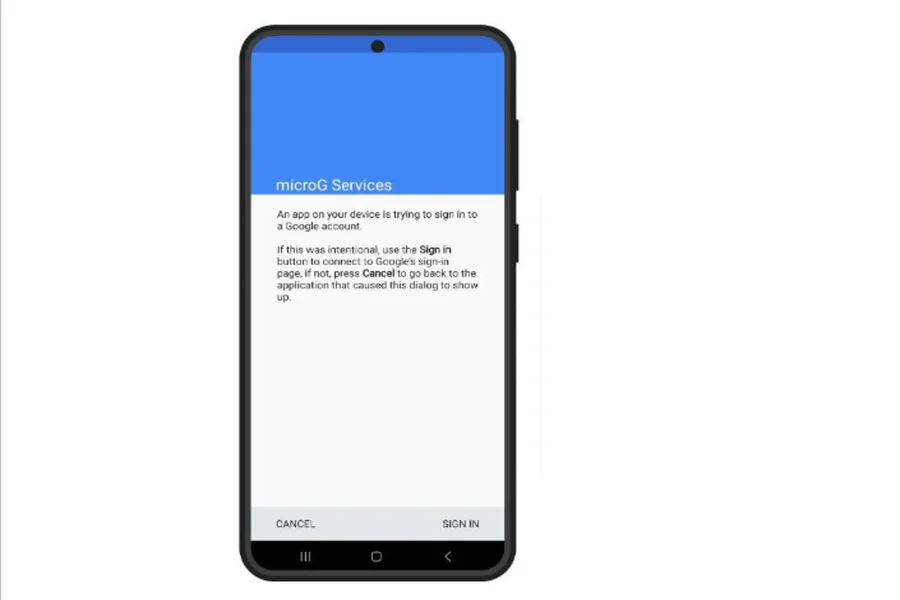
Configuring MicroG to Handle Your Essential Needs
After installation, MicroG needs to be configured to take over responsibilities previously handled by Google Services. This involves enabling device registration, activating the cloud messaging system, and approving location services as needed. Each setting plays an important role in ensuring that your apps receive notifications, track movement accurately, and authenticate properly. Many people find that configuration feels simpler than expected once they see how each option directly affects everyday functions. By completing these steps carefully, you ensure that your device remains stable and usable for all daily tasks.
Stage 4: Finalizing the Migration and Verification
Re-adding Accounts and Testing Core Functionality
Re-adding your accounts is the moment when MicroG begins to function as a full replacement for Google Services. Logging in helps apps recognize your identity and sync data smoothly, which is essential for email access, calendars, and navigation tools. Testing features such as push notifications, map accuracy, and login behavior allows you to verify that every component performs correctly. Most users discover that essential functions continue working without interruption once MicroG is correctly configured. With these verifications complete, you can feel confident that your migration is stable.
Deactivating or Removing Redundant Google Components
Once you confirm that everything works through MicroG, it becomes safe to deactivate unnecessary Google components. Removing or disabling them helps reduce background activity, which often improves battery life and device responsiveness. Many users feel a sense of control at this stage, as they finally understand which system parts are still needed and which ones can be retired. This also creates a cleaner, more efficient environment where fewer apps request background permissions. When the last redundant element is removed, your migration is effectively complete.
Post-Migration: Living with MicroG
Living with MicroG encourages you to become more aware of how apps behave on your device, especially when it comes to background data and permission usage. You may find yourself more willing to decline unnecessary permissions or uninstall apps that feel too demanding. Over time, this results in a leaner and more intentional digital ecosystem tailored to your personal needs. Many users also enjoy the longer battery life and quieter background activity that come with reduced system load. As you become familiar with MicroG’s strengths, the experience feels increasingly natural and empowering.
Conclusion
Migrating from Google Services to MicroG does not need to be overwhelming when approached with preparation, patience, and a clear strategy. By auditing your digital habits, testing alternatives gradually, and installing MicroG step by step, you maintain full control throughout the entire process. The result is a lighter, more private, and more efficient device experience that aligns with your personal values. With Google components minimized and MicroG fully configured, your phone becomes a tool that supports your privacy rather than competing with it. This thoughtful transition marks a meaningful step toward genuine digital autonomy—one that continues paying off each day you use your device.